起因
開發過程中,使用 LineBotSDK 相當不順手以及建立方式,後面我另外把LineBotSDK 另外用 NET Core 版本擴充,方便後續引用、覆寫。請參考使用方式。
所需套件
備註: 初版暫時使用兩種套件合併使用,後續看看有沒有空去修正現行狀況。
使用方式
本範例 .NET6.0 展示,若有其他使用操作問題,可以在下方留言。
一、新創一個類別
創建一個新的 Class 改寫LineBots 內容,後續會比較好使用。
// Helper/LineBot.cs
using StartFMS.Extensions.Line;
namespace StartFMS.Partner.API.Helper
{
    public class LineBot:LineBots
    {
        public override void MessageText()
        {
            var @event = ReceivedMessage.events.FirstOrDefault();
            string message = @event!=null ? @event.message.text:"";
            ReplyMessage(message);
            //base.MessageText();
        }
    }
}
二、設定 Program.cs 加入以下設定
加入 StartFMS.Partner.API.Helper.LineBot 類別。 (並不是 StartFMS.Extensions.Line.LineBots)
// Program.cs
var lineBots = new LineBot() {
    ChannelToken = config.GetValue<string>("Line:Bots:channelToken"),
    AdminUserID = config.GetValue<string>("Line:Bots:adminUserID")
};
builder.Services.AddSingleton<LineBot>(lineBots);
三、加入Controllers
    [HttpPost("", Name = "Message Reply")]
    public async Task<string> Post() {

        try
        {
            //載入 Line BOT
            using (var linebot = await _lineBots.LoadAsync(Request.Body))
            {
                //執行內容
                linebot.ExecuteReader(); //改內容透過 overrid 方式修改
            }

            return JsonConvert.SerializeObject(new
            {
                Success = true,
                Message = "",
            });
        }
        catch(Exception ex) {
            return JsonConvert.SerializeObject(new
            {
                Success = false,
                Message = ex.Message,
            });
        }

    }
注意事項
設定上面只需要以上動作即可,目前簡化到直接透過 Helper 方式進行修改執行內容。為了達到簡化效果本擴充有提供Function ,只需要針對Function 進行修改即可。
override method
Behavior method
function 分為兩段
- Join : 加入機器人
- Message : 留言
a. Join
加入機器人之後Bot動作行為。
public override void Join() { }
b.Message
如果是第一次使用以下 Function 不建議直接修改,本擴充有把 Message 回傳類別特別回傳到指定位置。
public override void Message() { }
Message method
以下是使用者透過下面 Function 選擇、讀取,也是本擴充工具的精華。overrid 建議由這邊function 進行修改,目前實測下來相當好用。
//文字
public override void MessageText() { }

//圖檔
public override void MessageImage() { }

//影片
public override void MessageVideo() { }

//聲音
public override void MessageAudio() { }

//貼圖
public override void MessageSticker() { }

//地圖
public override void MessageLocation() { }
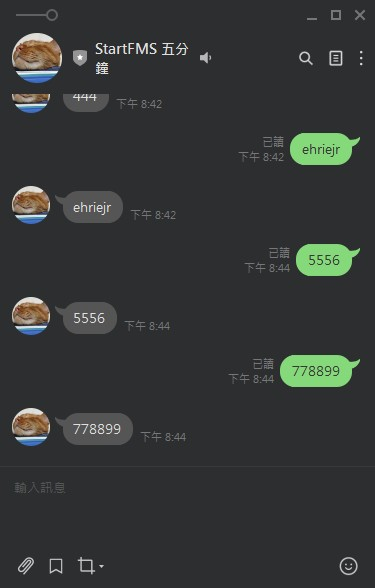
完成畫面如下,希望大家可以順利執行Line Bot 嚕。
留言