前言
近期沒有特別技術性的文章,這次就來介紹一下2FA驗證的使用方式。
2FA驗證
雙重要素驗證 (2FA) 是一種身分識別和存取權管理方法,它會要求您提供兩種形式的身分識別,才會讓您存取資源和資料。企業可以透過 2FA 進行監控,並協助保護其最容易受到攻擊的資訊和網路。
終端機QrCode
這篇就推薦以下工具,可以快速產生QRCODE。
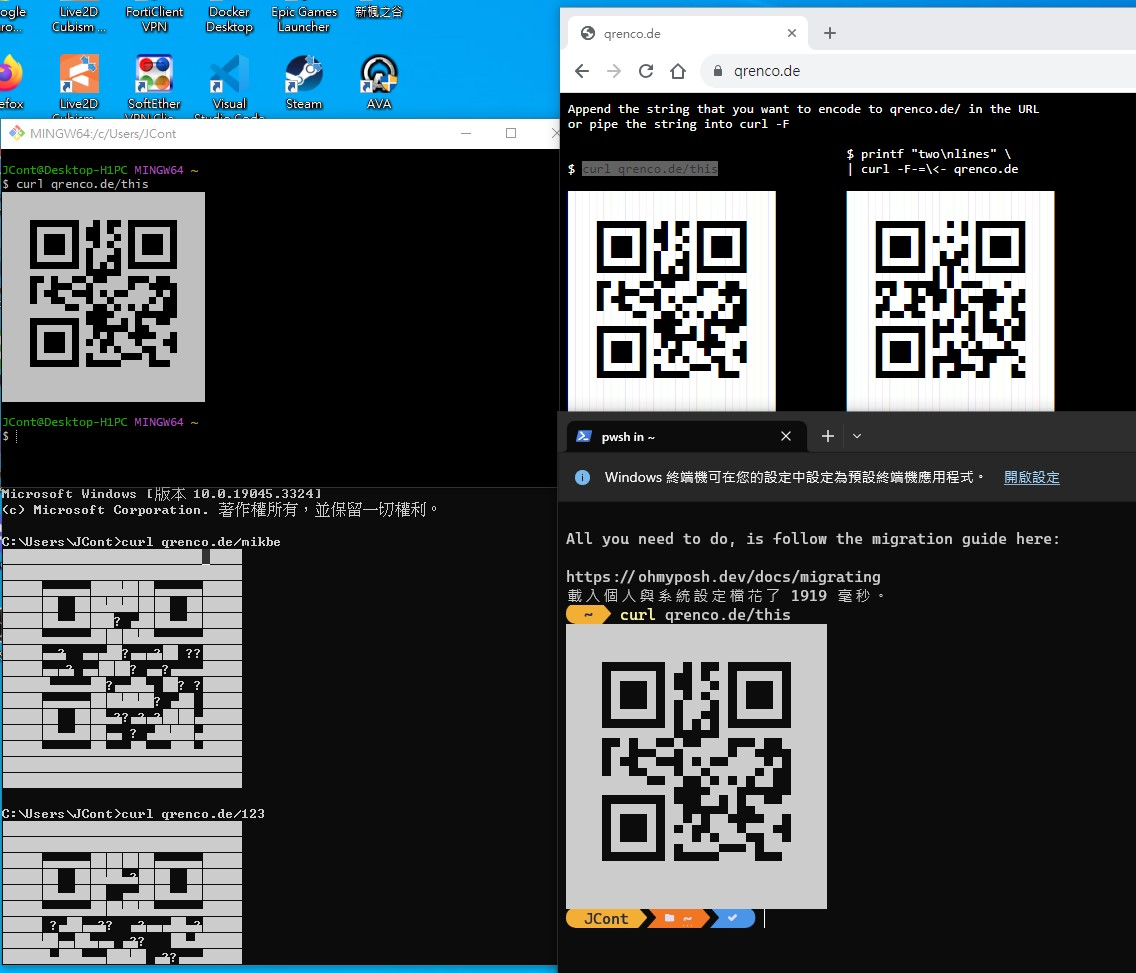
本文會使用 qrenco.de 來產生QRCODE,使用方式如下。將要輸入的文字放在"/“後面即可。
curl qrenco.de/qrcode123
製作方式
這邊製作方向會需要使用到Otp.NET。
1. 安裝套件
dotnet add package Otp.NET --version 1.3.0
2. 加入Process設定
備註 : C# 若要使用終端機指令必須要加入Process設定才可以使用。 下面範例其實還可以再簡化,若有興趣歡迎修改。
ProcessStartInfo startInfo = new ProcessStartInfo
{
    FileName = "cmd.exe", // 設定要執行的檔案名稱
    RedirectStandardInput = true // 設定是否從 RedirectStandardInput 取得輸入
};

// 建立Process
Process process = new Process { StartInfo = startInfo };
process.Start();

// 輸入指令
process.StandardInput.WriteLine($"curl qrenco.de/123");
process.StandardInput.Flush();
process.StandardInput.Close();

process.WaitForExit();
process.Close();
3. 產生QRCode
2FA 其實是有特別規定要使用哪個url 格式來設定參數。
string Issuer = "test"; // 發行者
string Account = "test1"; // 帳號or使用者名稱
var generateKey = KeyGeneration.GenerateRandomKey(); // 產生亂數金鑰
var secret = Base32Encoding.ToString(generateKey);

var genQrCode =
    $"\"otpauth://totp/{Account}?secret={Uri.EscapeDataString(secret)}&issuer={Uri.EscapeDataString(Issuer)}\"";
這樣QRCode 就產生完成了,接下來就是將QRCode輸出到終端機上。只要把上面產生的QRCode放在curl後面即可。
備註 : 終端機遇到&會截斷,所以要使用【"】來處理。
process.StandardInput.WriteLine($"curl qrenco.de/{genQrCode}");
4. 製作驗證碼驗證
這樣短短幾行就結束了,接下來就是把功能跑一次就可以使用了。因為url是統一格式,所以google 、microsoft 、authenticator 都可以使用。
  static Totp totpInstance = null;

  if (totpInstance == null)
  {
      totpInstance = new Totp(Base32Encoding.ToBytes(secret));
  }

  long timedWindowUsed;
  if (totpInstance.VerifyTotp(totp, out timedWindowUsed))
  {
      return $"驗證通過 - {timedWindowUsed}";
  }
  else
  {
      return "驗證失敗";
  }
完整程式碼
using System.Diagnostics;
using OtpNet;

class Program
{
    static void Main(string[] args)
    {
        string Issuer = "test";
        string Account = "test1";
        var generateKey = KeyGeneration.GenerateRandomKey();
        var secret =Base32Encoding.ToString(generateKey);
        var genQrCode =
            $"\"otpauth://totp/{Account}?secret={Uri.EscapeDataString(secret)}&issuer={Uri.EscapeDataString(Issuer)}\"";

        Console.WriteLine("QR Code Content: " + genQrCode);

        // 執行 curl 指令
        ExecuteCurlCommand($"qrenco.de/{genQrCode}");

        // 驗證 TOTP
        while(true){
            Console.WriteLine("Enter TOTP to validate:");
            string inputTotp = Console.ReadLine();
            string validationMessage = ValidateTotp(inputTotp, secret);
            Console.WriteLine(validationMessage);
        }
    }

    static void ExecuteCurlCommand(string url)
    {
        ProcessStartInfo startInfo = new ProcessStartInfo
        {
            FileName = "cmd.exe",
            RedirectStandardInput = true
        };

        Process process = new Process { StartInfo = startInfo };
        process.Start();

        process.StandardInput.WriteLine($"curl {url}");
        process.StandardInput.Flush();
        process.StandardInput.Close();

        process.WaitForExit();
        process.Close();
    }

    static Totp totpInstance = null;
    static string ValidateTotp(string totp, string secret)
    {
        if (totpInstance == null)
        {
            totpInstance = new Totp(Base32Encoding.ToBytes(secret));
        }

        long timedWindowUsed;
        if (totpInstance.VerifyTotp(totp, out timedWindowUsed))
        {
            return $"驗證通過 - {timedWindowUsed}";
        }
        else
        {
            return "驗證失敗";
        }
    }
}
結語
這篇我把2FA介紹留給下一章節,這邊只是簡單介紹一下使用方式,比較多人做法是image產生QRCODE,但是我覺得這樣比較麻煩,所以就用curl的方式來產生QRCODE (限制終端機部分)。
留意一下 windows 10 以下的命令提示字元(command prompt)會遇到亂碼或是無法正常顯示可以用powershell / bash來執行。
留言